Production build for a Java web app: smaller, cacheable assets

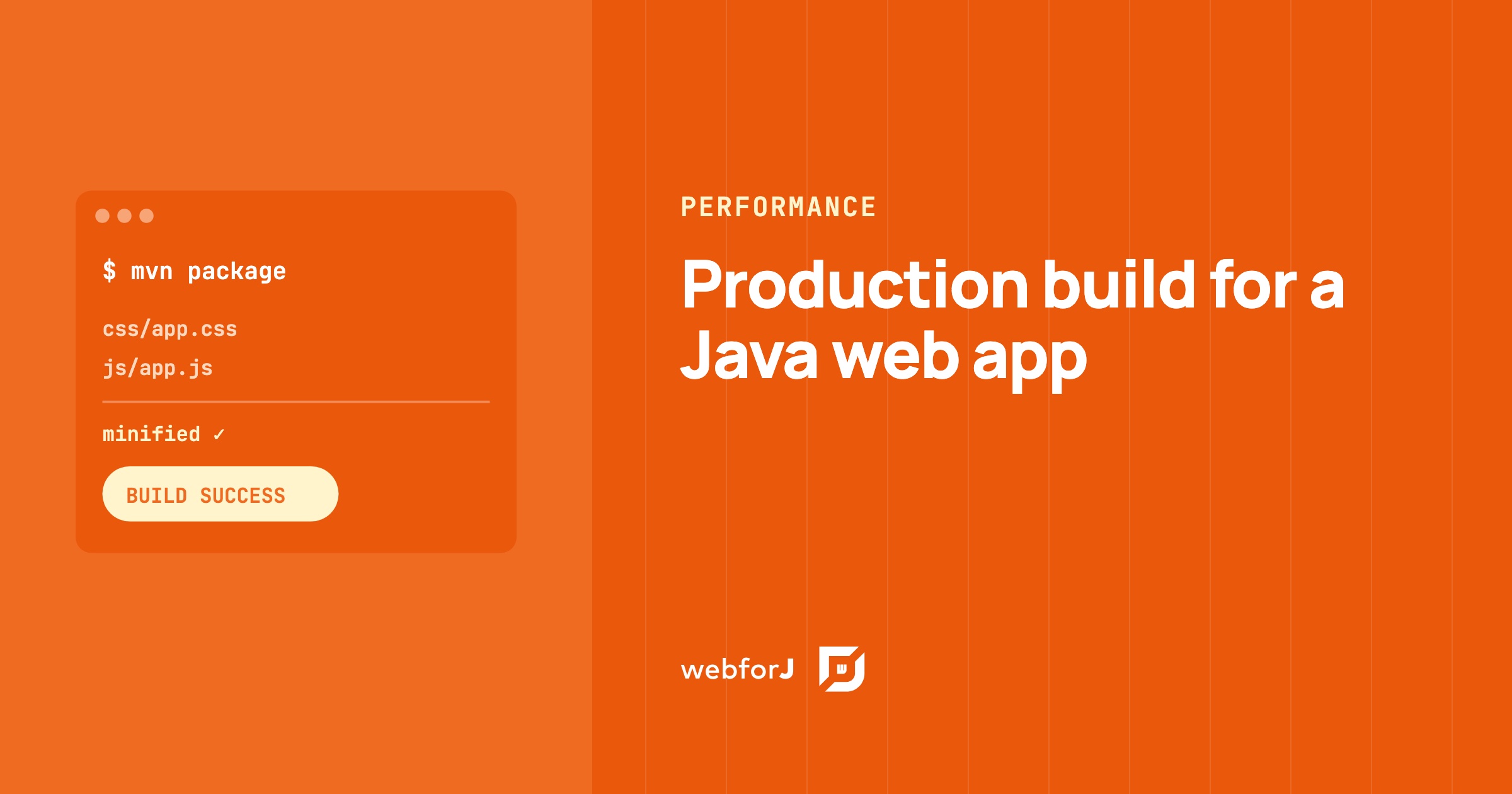
Out of the box, a webforJ app needs no build tuning. The framework's own components and runtime ship ready for both development and production with no extra setup, so a plain webforJ app has nothing to minify and no build step to configure.
A production build for a Java web app only comes into play once you add your own assets: custom CSS, JavaScript, or npm packages. For those, mvn package compiles the frontend, puts a hash of each file's content into its filename, and minifies the CSS and JavaScript. Browsers download less, and they keep each file in cache until its content changes. Below are the steps for your custom assets, from the build plugin to the minifier plugin for apps that load assets through annotations.
Why development output slows pages
The development build is made for you while you work. It keeps filenames stable so the watch can swap a file in place. It also keeps whitespace and comments, so you can read what loads.
Those choices cost time in production. A stable name gives the browser no clue about whether the content changed, so it can't safely keep an old copy. Unminified text is also larger than it needs to be, and every byte travels to the user.
The fix has two parts. Hashed names let the browser cache files for a long time. Minification shrinks each file the browser does download.
Add the webforJ build plugin
Add the build plugin to pom.xml once. A project created from an archetype already has it.
<plugin>
  <groupId>com.webforj</groupId>
  <artifactId>webforj-maven-plugin</artifactId>
  <extensions>true</extensions>
</plugin>
The <extensions>true</extensions> setting binds the plugin's goals to the build, so no execution block is needed.
Production build with mvn package
-
Run the package phase.
mvn package -
The
bundlegoal runs inprepare-package, before the jar or war is created. The frontend compiles for production, with hashed filenames and minified output. -
Deploy the packaged app the way you already do.
Frontend tests run in the test phase, so mvn test covers them with the Java tests.
Hashed names change when the content changes. A new release gets new names, which forces a fresh fetch, and the cache stays correct without a manual version bump in your code.
Check the packaged output
- Start the packaged app, not the watch, because the watch serves development output.
- Open the app in a browser and open the Network tab in the developer tools.
- Reload the page. Each frontend file bundled by the build should carry a hash in its name, and the sizes should be the minified ones. If the sizes match the development build, check that you ran
mvn packageand notmvn compile, since only the package phase runs the bundle goal.
Minify annotated assets
If your app loads CSS and JavaScript through asset annotations and doesn't use the bundler, the minifier plugin does the minifying. Point the annotations at files with the ws:// protocol:
@StyleSheet("ws://css/app.css")
@JavaScript("ws://js/app.js")
public class ProductionApp extends App {
}
The minifier works on the built output, so your source files stay readable in the repository. ws:// maps to src/main/resources/static/, so ws://css/app.css reads static/css/app.css. context:// maps to src/main/resources/. The protocols page covers both. URLs without a protocol aren't supported by the minifier and get skipped.
The minifier isn't part of a new project, so add it to your build yourself. The minifier plugin page lists the annotation processor and the two minifier dependencies.
If the app uses the bundler, skip this section, since the bundler already minifies its output.
To build without minification for one run, pass -Dwebforj.minify.skip=true. Use it when a minified file hides a bug you need to read.
Pitfalls that skip the minifier
- No protocol. A URL without
ws://orcontext://is skipped. The browser still loads it, but it stays unminified. - Wrong path. A
ws://path that doesn't matchsrc/main/resources/static/produces aFile not foundwarning in the build log, and that file stays unminified. - Missing minifier dependencies. If the log says
No minifiers registered, addwebforj-minify-phcss-cssfor CSS andwebforj-minify-closure-jsfor JavaScript to the plugin. - Syntax errors. A file that fails to parse keeps its original content, and the build only warns. Read the warnings after every build.
Pick a loading mode
By default, each view loads only the frontend it uses, when a component of its class is created. A view pays for nothing it doesn't render.
Eager mode loads the whole frontend at app start as one bundle. It's off by default. To turn it on, add <eager>true</eager> under the webforj-maven-plugin configuration in pom.xml, or set eager = true in the Gradle webforj block.
Eager mode moves frontend work to the first load. That first load is larger, but views that open later don't wait for their own files. Choose eager when you want the full frontend in place from the start. Keep the default when most visitors open only one or two views.
Checklist
- The build plugin is in
pom.xml, andmvn packageruns the bundle goal. - Annotated assets use
ws://orcontext://paths, so the minifier can find them. - The minifier plugin is set up in projects that don't use the bundler.
- Eager mode is set on purpose, not left by accident.
- Debug runs use
mvn compile webforj:watchfor readable output, and packaged builds keep the defaults.
Ship a smaller build today
Start from startforJ to get a project that already has the build plugin, then add the minifier if your app loads assets through annotations. The build and tests page describes what the bundler does on each build. The 26.01 release notes cover when the frontend bundler arrived.
Entwickelst du etwas mit webforJ?
Sprechen Sie mit dem Team über Ihr Projekt, eine Migration oder ob webforJ das Richtige für Sie ist.
Weiterlesen
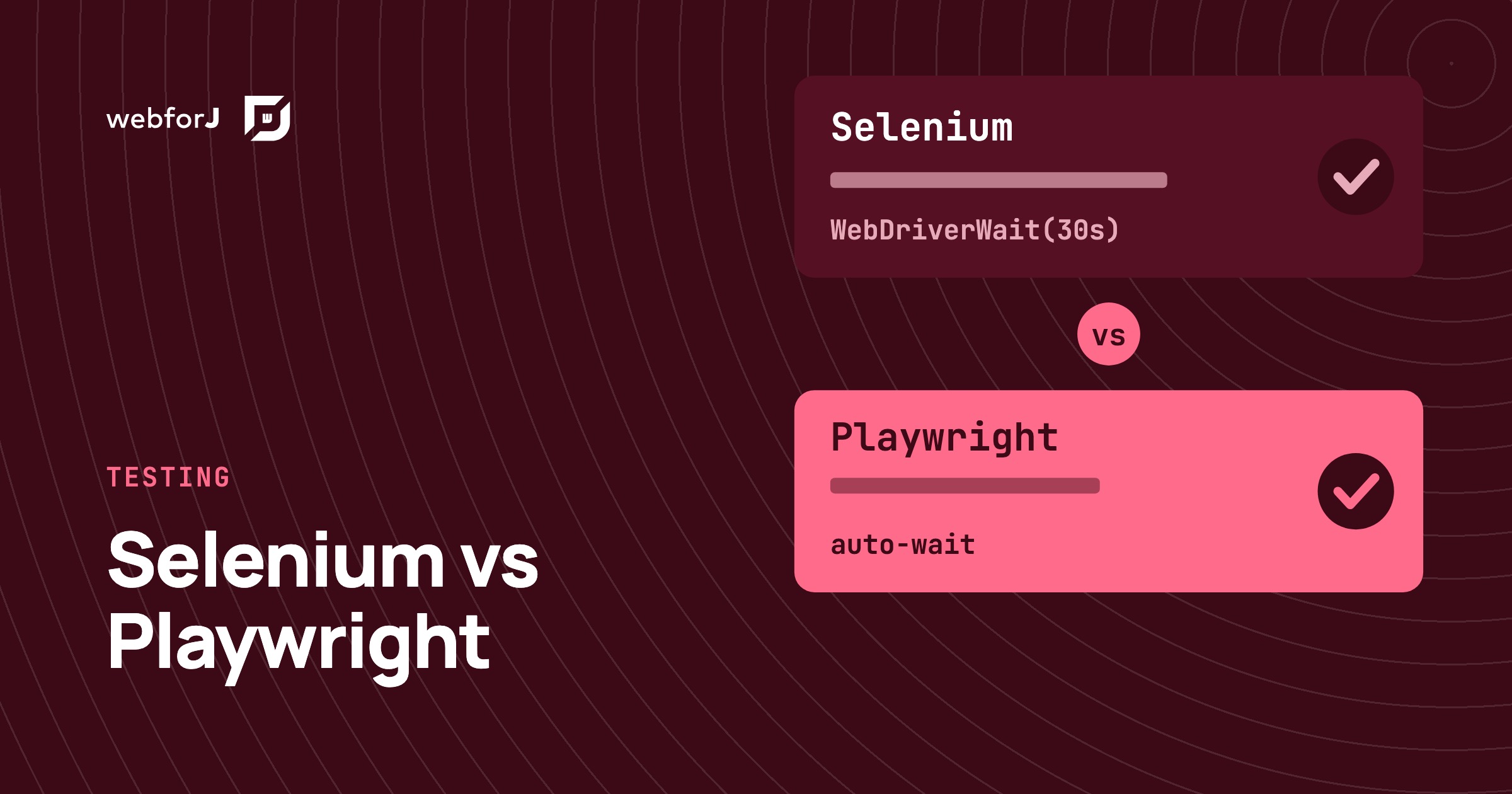 Selenium vs Playwright for Java: testing a webforJ UISelenium vs Playwright for Java UIs: both drive a webforJ app from plain JUnit. Here are the myths, the facts and which one to pick for your suite.
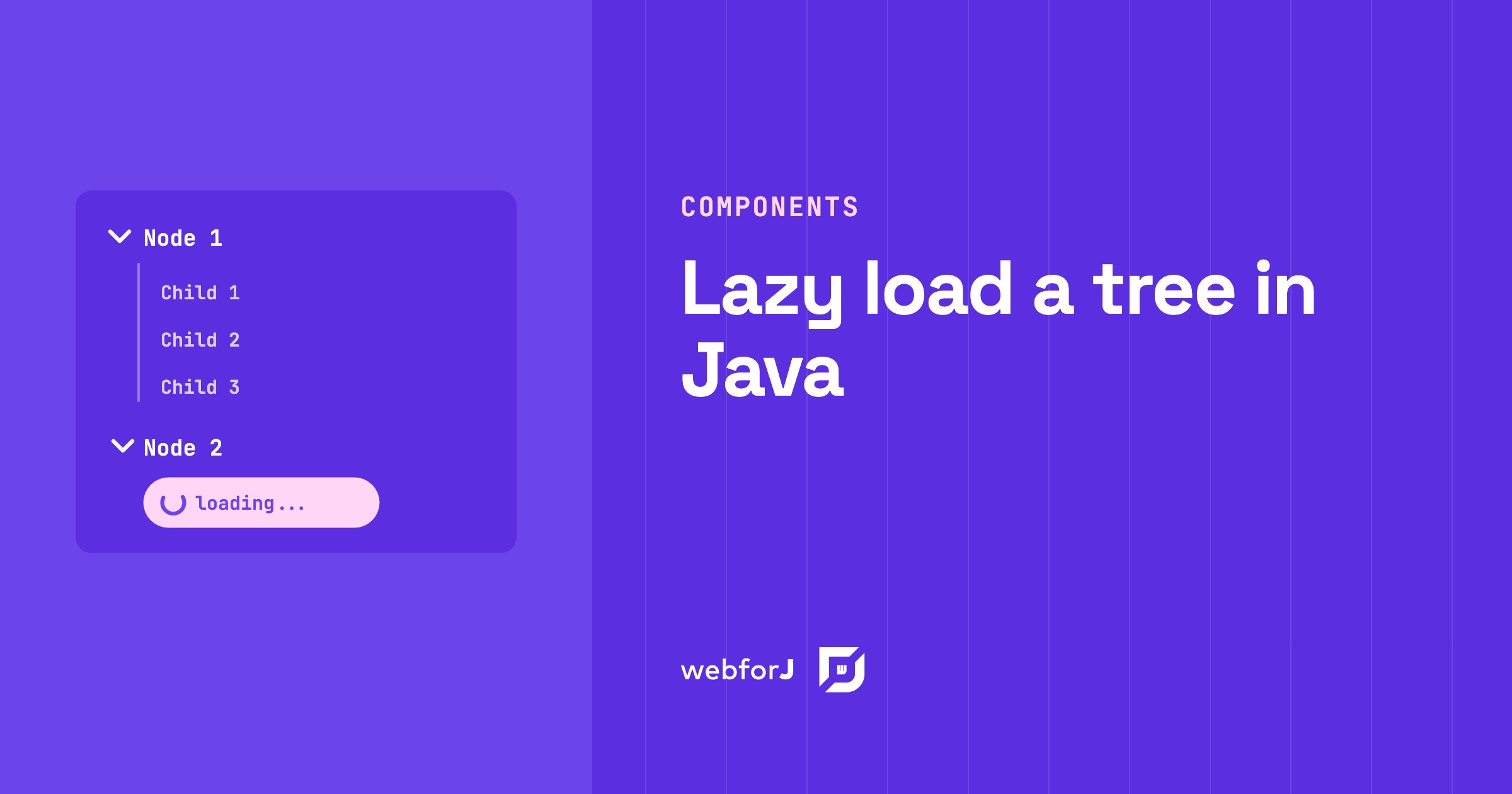 Lazy load tree in Java: children on expand with webforJLazy load a tree in Java with webforJ. Give each folder a placeholder child, then fetch the real children inside the onExpand handler when it opens.
 Real-time UI updates in Java: push changes from the serverReal-time UI updates in Java with webforJ: push job progress, refresh numbers on an interval and debounce search without WebSocket or SSE code.
