Parallel run migration: prove each new Java screen with a test

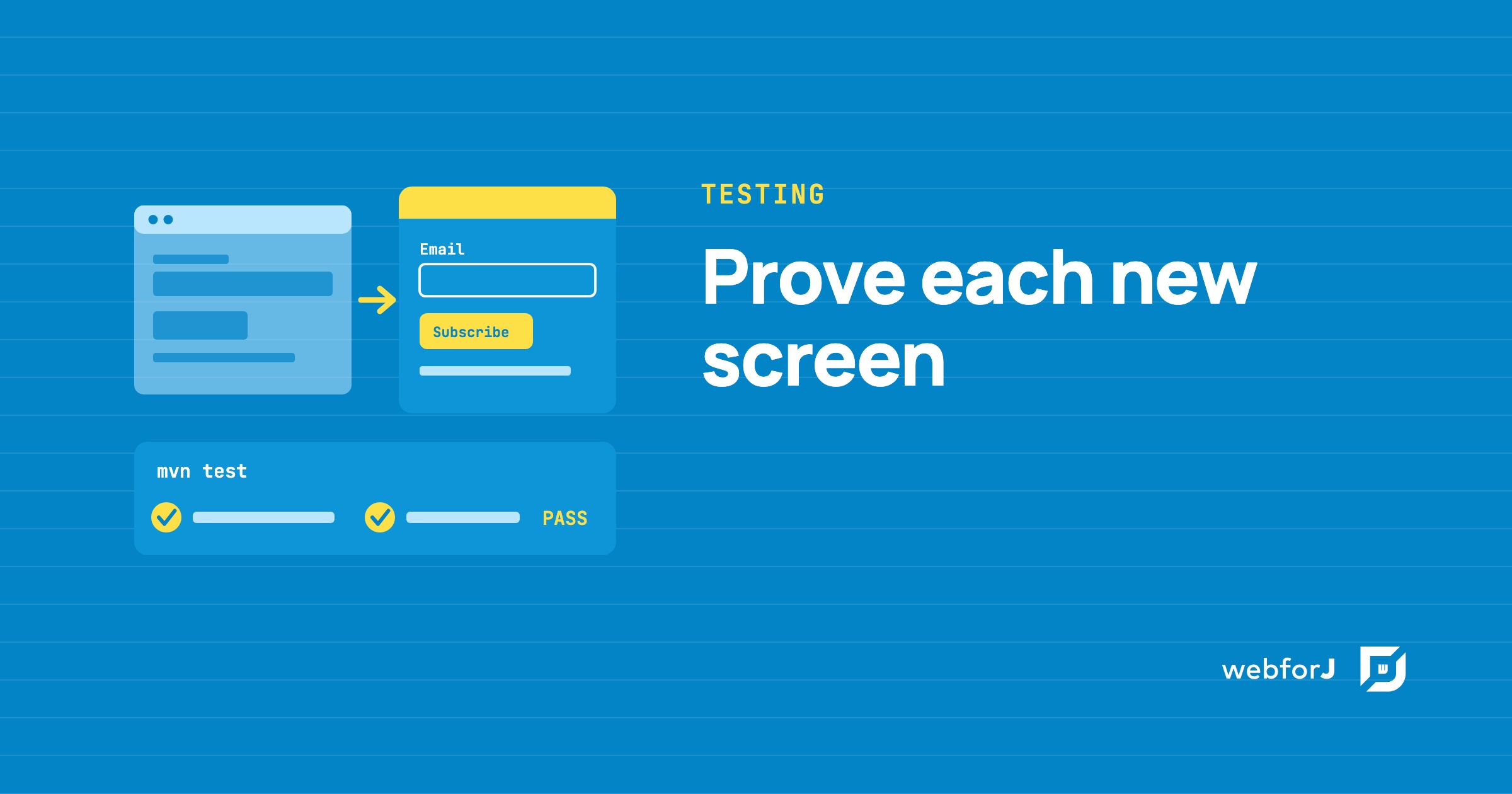
You have moved the first screen of an old Java app to the web, and it looks right. The next question is harder. Does it still behave the way the old screen did, and will it still behave that way after the next ten screens land? Nobody wants a user to be the one who finds out.
In a parallel run migration the old and the new version run side by side, and the old one is the reference you compare against. For a Java desktop app, Webswing keeps the existing app running in the browser while webforJ builds the replacement screens next to it in the same tab, so the old behavior is still there to check each new screen against. This guide gives every new webforJ screen a TestBed test, a plain JUnit test with no browser, that pins the behavior your users rely on. Each screen passes its tests before the next one starts.
Moving a desktop Java app to the web?
Send us a screenshot of one screen and we'll reply with how it moves to webforJ.
Why a ported screen needs a test
During a parallel run the old screen is still there to compare against, so the first check is easy. Open both, try the same steps, and see whether they match. The trouble starts later. Screen six changes a shared service or a common layout, and screen one breaks without anyone opening it again.
A test turns what you checked by hand into something the build checks on every change. The webforJ TestBed, available since 26.03, runs a view inside a plain JUnit test. No browser is opened and no server is started. The test finds components the way a user does, acts on them, and checks what the page shows, and it runs in the same mvn test as your unit tests.
Be clear about what it tests. The TestBed tests the new webforJ screens. The Swing screens still running inside Webswing are rendered on the server and streamed to the browser as an HTML5 canvas, so a TestBed test never reaches them. The old screen is your reference. The new screen is what the test pins.
Step 1: write down what users rely on
Before you port a screen, open the old one and list what a user reads and does on it, as plain sentences. Take a small subscribe form as the example:
- The address field carries the label
Email. - Subscribe stays disabled until the field holds an address.
- After a click, the screen confirms the address it subscribed.
Each sentence becomes one test. Keep the sentences about what the user reads and does, not about how the old code was built. A TestBed test works through what the page shows, so it keeps passing when the view is built differently and fails when the user would see something else. That's exactly the property a port needs.
Step 2: add the TestBed dependency
The TestBed is a separate module. Add it with test scope:
<dependency>
  <groupId>com.webforj</groupId>
  <artifactId>webforj-testbed-junit</artifactId>
  <scope>test</scope>
</dependency>
The version comes from the webforJ Bill of Materials, so the dependency declares none. Spring Boot apps use the webforj-spring-testbed module instead, covered in Spring testing.
Step 3: build the new screen in webforJ
The webforJ version of the form is one Java class. The button starts disabled, and a listener on the field turns it on once an address is typed:
public class NewsletterForm extends Composite<Div> {

  public NewsletterForm() {
    TextField email = new TextField("Email");
    Paragraph status = new Paragraph();
    Button subscribe =
        new Button(
            "Subscribe", e -> status.setText("Subscribed " + email.getValue()));
    subscribe.setEnabled(false);
    email.onModify(e -> subscribe.setEnabled(!email.getValue().isBlank()));

    getBoundComponent().add(email, subscribe, status);
  }
}
Step 4: pin each behavior in a test
Sentences 1 and 3 from the list fit in one test. It finds the field by its label and the button by its text, types an address, clicks, and checks the confirmation. The test class carries @WebforjTest, which gives each test method its own WebforjTestbed:
@Test
void shouldSubscribeTheEmailTheUserTyped(WebforjTestbed context) {
  context.add(new NewsletterForm());

  var email = ComponentLocator.of(TextField.class).byLabel("Email").locate();
  var subscribe = ComponentLocator.of(Button.class)
      .byText("Subscribe")
      .locate();

  UserInteraction.type(email, "ada@example.com");
  UserInteraction.click(subscribe);

  assertTrue(
      ComponentLocator.of(Paragraph.class)
          .byText("Subscribed ada@example.com")
          .isPresent());
}
If someone changes that label to E-mail address during the port, byLabel("Email") finds nothing and the test fails. Users who learned the old screen notice that kind of change, so the test should too.
Step 5: pin what a user can't do
Sentence 2 is a rule, and rules are where ported screens drift. UserInteraction makes only the gestures a user could make, so clicking a disabled button throws an InteractionRejectedException and the listener never runs:
@Test
void shouldRejectTheClickWhileNoEmailIsTyped(WebforjTestbed context) {
  context.add(new NewsletterForm());

  var subscribe = ComponentLocator.of(Button.class)
      .byText("Subscribe")
      .locate();

  assertThrows(
      InteractionRejectedException.class,
      () -> UserInteraction.click(subscribe));

  assertFalse(
      ComponentLocator.of(Paragraph.class)
          .byTextContaining("Subscribed")
          .isPresent());
}
If a later change drops the setEnabled(false) line, the click goes through, nothing is thrown, and this test goes red.
Step 6: pin a whole screen with a snapshot
Some screens are mostly read: an order summary, a detail view, a confirmation page. Checking each label one by one takes a long test. A snapshot writes down everything a user would see in the view, one line per component, and stores that description next to the test. Here OrderSummary is a view with an order number, a note field, a hidden discount line, a Pay button and a disabled Cancel button. Its full source is on the snapshots page:
@Test
void shouldMatchTheSnapshot(WebforjTestbed context) {
  var summary = new OrderSummary();
  context.add(summary);

  verifyThat(summary).matchesSnapshot();
}
The first run writes the file and passes:
# webforJ testbed snapshot v1
- OrderSummary [composite=Div] [node=div]:
  - Paragraph "Order 1042" [composite=Element] [node=p]
  - TextField [label=Note] [placeholder="Delivery instructions"]
  - Paragraph "Discount applied" [composite=Element] [node=p] [hidden]
  - Button "Pay" [theme=primary]:
    - Icon [slot=prefix] [name=credit-card] [composite=Element] [node=dwc-icon]
  - Button "Cancel" [disabled]
Read that file next to the old screen. If it matches what users saw before, commit it. Every later run describes the view again and compares. When the Pay button turns into Pay now, mvn test fails with a plain diff:
-  - Button "Pay" [theme=primary]:
+  - Button "Pay now" [theme=primary]:
When a change is intended, run mvn test -Dwebforj.testbed.updateSnapshots=true once and review the changed files like code. On a CI server the TestBed never writes snapshot files, so a missing snapshot fails the build instead of being written, and an update run fails too. An outdated snapshot fails on every machine until you review and update it. The snapshots page covers the format and the options.
Step 7: go green before the next screen
TestBed tests are plain JUnit tests. mvn test runs them with the rest of the suite, and your CI runs them on every push. Make that the gate of the migration. A screen counts as moved when its tests pass, and the next screen starts after that.
This keeps the strangler fig approach honest. Users switch to the new screen while the old one stays available in Webswing, and every screen you already moved stays pinned while you work on the next. If an AI assistant writes the port, the same tests give it a pass or a fail before you review, which is the loop in the AI verification loop for Java.
What a TestBed test doesn't cover
A TestBed test checks what your views do when a user works with them. It leaves out two things:
- The Swing screens. They run inside Webswing and reach the browser as a canvas. The TestBed finds webforJ components only.
- What only a browser shows. Styling, layout and client behavior belong in a few browser tests. Java web app testing strategy shows how to split the layers so the browser suite stays small.
For a full tour of locating, acting and asserting, read Java UI testing without a browser.
Checklist for every ported screen
- The old screen's behavior is written down as plain sentences.
- Each sentence has a TestBed test on the new webforJ screen.
- Rules, such as a disabled button, have a test that tries the forbidden gesture.
- Mostly read screens have a snapshot that was checked against the old screen.
- Snapshot files are committed next to the tests.
-
mvn testpasses locally and in CI. - Only then does the next screen start.
Plan your migration with us
When you are ready to pick the first screens and plan the parallel run, see how the path works and talk to us.
Rakennatko jotain webforJ:llä?
Keskustele tiimin kanssa projektistasi, migraatiosta tai siitä, sopiiko webforJ sinulle.
Jatka lukemista
 Big bang migration vs phased: how to cut over a Java appBig bang migration vs phased for a Java business app: cut over one screen at a time with Webswing and webforJ, with a rollback plan at every step.
 Java applet replacement: your options after JDK 25Applets were removed from the JDK in JDK 26. Compare each Java applet replacement option, from Webswing in the browser to a rebuild in Java with webforJ.
 Modernize a Java Swing app without JavaScript: JavaOne 2026Watch how to modernize a Java Swing app without JavaScript: run it in the browser with Webswing, then build new screens in Java with webforJ, step by step.