Toast notification in Java: show messages with webforJ

A toast notification is a short message that appears on screen and then disappears by itself. In webforJ, you show one from any Java click handler with a single call: Toast.show("Changes saved", Theme.SUCCESS). The Toast component has been part of webforJ since version 24.10. It handles timing, colors, and screen placement, so you don't write JavaScript for it.
This guide shows you how to add toasts to a view, control how long they stay, and keep important alerts on screen until the user dismisses them.
The Toast documentation has live, interactive samples you can click through in the browser, with the full Java source next to each one.
Show a toast in one line
Follow these steps to show a toast when a button is clicked.
- Create a view class that extends
Composite<Div>. - Add a
Buttonto the view. - Call
Toast.show()inside the click listener.
Button saveButton = new Button("Save",
    e -> Toast.show("Changes saved", Theme.SUCCESS));
getBoundComponent().add(saveButton);
You don't add a toast to a layout. The first time you call show() or open(), webforJ attaches the toast to the first Frame of the app. Toast.show() also returns the toast it created, so you can keep a reference if you need to close it early.
Use show() for quick feedback such as a saved form, a copied link, or a completed export. Each call creates a new toast, so you can call it as often as the user triggers the action.
Set duration, theme and placement
Use the constructor when you need control over the toast. It takes the text, the duration in milliseconds, a Theme, and a Placement.
Toast toast = new Toast("File uploaded", 3000, Theme.INFO, Placement.TOP_RIGHT);
toast.open();

Toast slow = new Toast("Import finished");
slow.setDuration(10000).setPlacement(Placement.BOTTOM_LEFT);
slow.open();
Keep these values in mind:
- Duration is in milliseconds, and a toast closes after 5000 by default.
setDuration()returns the toast, so you can chain it with other setters. - Theme accepts
DEFAULT,PRIMARY,INFO,SUCCESS,WARNING,DANGER, andGRAY. Match the theme to the message type. - Placement is
Toast.Placement. Without one, the toast appears at the bottom center of the screen.
Placement also includes TOP, TOP_LEFT, TOP_RIGHT, BOTTOM_LEFT, BOTTOM_RIGHT, and CENTER. Pick a corner when the toast would otherwise cover a control the user needs.
Toasts stack. When several are open at the same placement, newer ones appear closer to the edge and push older ones away, so a burst of messages doesn't hide earlier ones.
Pick the duration from the message length. A short confirmation can close in three seconds. A message that asks the user to read a sentence or two needs about ten seconds.
Set the theme and placement in the constructor when they never change. A toast can also carry interactive content. The Toast docs show one with buttons for a cookie notice, so a toast can ask a question as well as report a result.
Use the setters when the same toast object changes state before it opens.
Keep a toast open until the user acts
A negative duration keeps the toast on screen until your code closes it. Use this for warnings that need a response, such as a session timeout or a failed save that the user must fix.
Toast warning = new Toast("", -1, Theme.WARNING, Placement.TOP);
Button dismiss = new Button("Got it", e -> warning.close());
warning.addToMessage(dismiss);
warning.open();
addToMessage() places components in the message area, so the button sits inside the toast. close() hides the toast and destroys it.
Don't use a negative duration for routine feedback. A save confirmation that never closes trains users to ignore toasts. Always give the user a way to dismiss a persistent toast, like the button in the example.
Toast checklist
- Set a theme that matches the message type.
- Choose a placement that doesn't cover a control the user needs.
- Use a negative duration only when the toast has a close button.
- Call
close()after the user acts on the message. - Check the Toast docs page for the full option list.
Next, create a project with startforJ or add the button and toast code from this guide to an existing view in your app. The Button docs cover the click listeners used in these examples.
Frequently asked questions
Where does a toast appear if I don't add it to a layout?
A toast attaches to the first Frame of the app when you call open() or show(). You don't need to add it to a container. The toast then appears at its placement on the screen.
How long does a toast stay on screen?
The duration is set in milliseconds. Pass it to the constructor or call setDuration(). A negative value keeps the toast open until you call close().
Can I put a button inside a toast?
Yes. Call addToMessage() with one or more components. Use this for an undo action or a dismiss button.
Can I change the size or colors of a toast?
Yes. Define CSS variables such as --dwc-toast-background and --dwc-toast-color once in your stylesheet, and every toast picks them up. The Toast docs page includes a custom theme example.
Which placements can I use?
You can use TOP, TOP_LEFT, TOP_RIGHT, BOTTOM, BOTTOM_LEFT, BOTTOM_RIGHT, and CENTER. The default is BOTTOM. Each toast has one placement, so you can show different messages in different corners.
Building something with webforJ?
Talk to the team about your project, a migration, or whether webforJ fits.
Keep reading
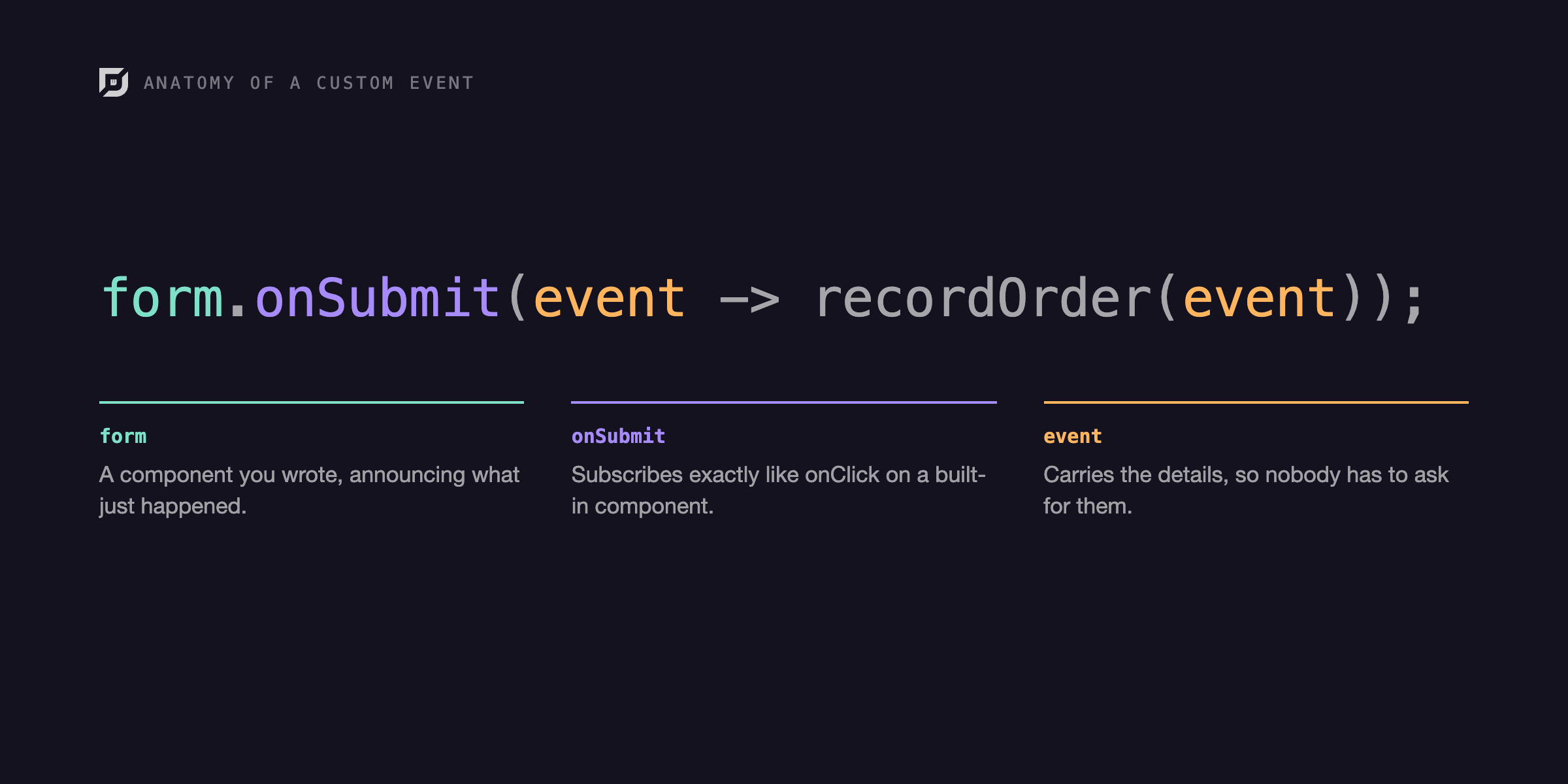 The Demo That Taught Me webforJ EventsBuilding a demo to understand custom events taught me more than writing the docs did, and showed me how much of webforJ's event handling stays in plain Java.
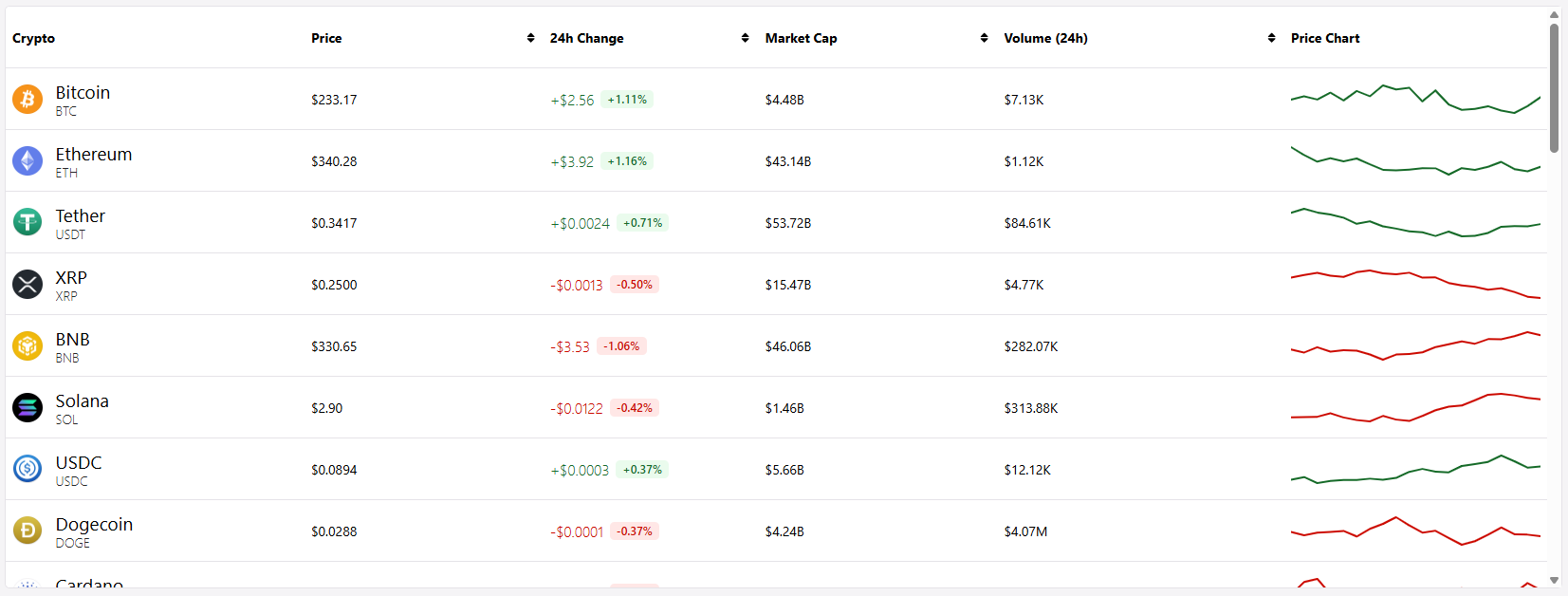 Making Data Display Less Boring in webforJLearn how to use custom renderers to display rich, formatted content in webforJ tables
 FlexLayouts Part 2: Getting your Flex Items in OrderCreating dynamic layouts in Java with webforJ's FlexLayout
