Use SAP UI5 or your own design system in a Java web app


Your company already has a design system, maybe SAP UI5, maybe custom elements your teams share. A Java team now has to build screens with it, and the usual answer is a separate frontend project.
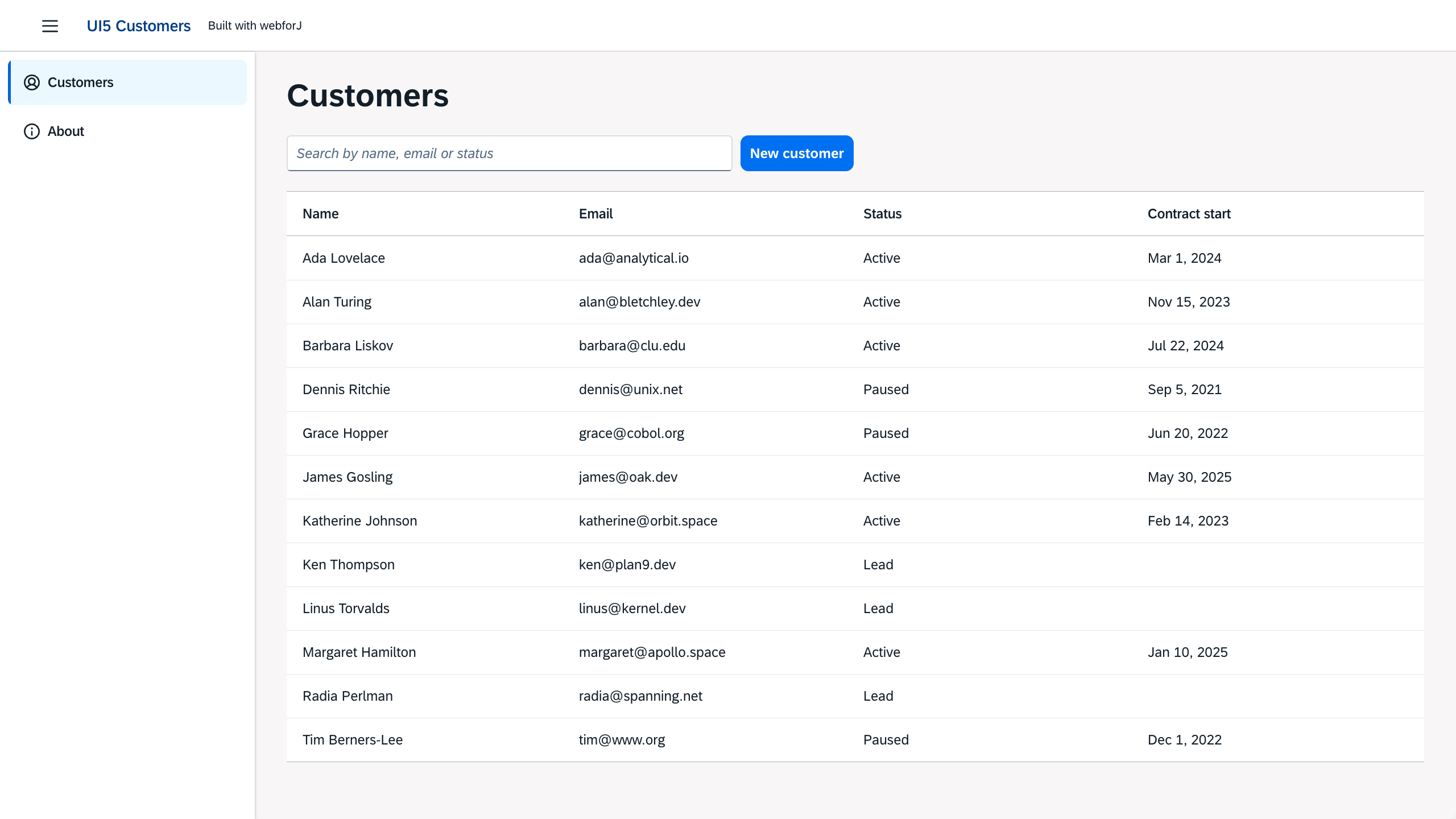
With webforJ the Java team uses the design system directly. This tutorial wraps SAP UI5 Web Components in five steps. The result is a form of UI5 controls that binds to a Java bean, validates, and passes JUnit tests without a browser.
The UI5 customer app is published on GitHub, with every wrapper, view, and test from this tutorial. It runs with Java and Maven, and it's kept up to date with each new webforJ release.
Trying this in your own app?
Ask the webforJ team when something doesn't fit your case.
The result: UI5 data binding
This is the form view at the end. Every field is a UI5 control:
private final Ui5Input name = new Ui5Input("Name");
private final Ui5Input email = new Ui5Input("Email");
private final Ui5Select<Status> status = new Ui5Select<>("Status");

binding = BindingContext.of(this, Customer.class, true);
And saving:
if (binding.write(customer).isValid()) {
  service.save(customer);
}
Type an address without an @ and press Save. The email field turns red the UI5 way, shows the message from the @Email constraint on the bean, and nothing reaches the service.
That works because each UI5 control implements the same small interfaces as a built-in webforJ component. The steps below build those controls.
Step 1: A base class for every field
Data binding doesn't care which component it talks to. It only needs a few interfaces, called concerns: HasValue for the value, HasLabel for the label, and so on. One base class implements them for all UI5 fields:
public abstract class Ui5Field<T extends Ui5Field<T, V>, V> extends ElementCompositeContainer
    implements HasValue<T, V>, HasLabel<T>, HasRequired<T>, HasEnablement<T>, HasVisibility<T>,
    HasSize<T>, HasClassName<T>, HasStyle<T> {

  private final PropertyDescriptor<String> accessibleNameProp =
      PropertyDescriptor.property("accessibleName", "");

  protected void watchValue(PropertyDescriptor<?> property, String event) {
    synchronize(property, event);
    getElement().addEventListener(event,
        e -> getEventDispatcher().dispatchEvent(new ValueChangeEvent<>(this, getValue())));
  }

  @Override
  public T setLabel(String label) {
    set(accessibleNameProp, label);
    return self();
  }

  // getLabel, setRequired, isRequired and addValueChangeListener follow the same pattern
}
The two type parameters, in plain words:
Vis the value type. The input holds aString, the switch aBoolean, the select your own type, such asStatus.Tis the control's own class. It letssetLabelreturn aUi5Inputon an input and aUi5Switchon a switch, so calls chain without casts.self()returnsthisas that type.
So Ui5Input declares itself as Ui5Field<Ui5Input, String>, and Ui5Switch as Ui5Field<Ui5Switch, Boolean>.
What the methods do:
setLabelwrites the UI5accessibleNameproperty, because UI5 inputs draw no label of their own.watchValueconnects a UI5 property to the browser event that changes it. It stores the new value first, then fires the change event, so listeners never read an old value.
Step 2: Show validation errors
UI5 marks an invalid field with valueState set to Negative and shows the text in a slot called valueStateMessage. A second base class maps the InvalidAware concern onto that:
public abstract class Ui5ValidatedField<T extends Ui5ValidatedField<T, V>, V>
    extends Ui5Field<T, V> implements InvalidAware<T>, HasReadOnly<T> {

  private final PropertyDescriptor<ValueState> valueStateProp =
      PropertyDescriptor.property("valueState", ValueState.NONE);
  private final Div message = new Div();

  protected Ui5ValidatedField(String label) {
    super(label);
    getElement().add("valueStateMessage", message);
  }

  @Override
  public T setInvalid(boolean invalid) {
    set(valueStateProp, invalid ? ValueState.NEGATIVE : ValueState.NONE);
    return self();
  }

  @Override
  public T setInvalidMessage(String message) {
    this.message.setHtml(message);
    return self();
  }
}
setHtml is on purpose: when a field breaks two rules, the binding joins the messages with <br>.
Step 3: Wrap a control
Now one UI5 control is a short class. It names the npm package and the element, then says which property holds the value and which event changes it:
@BundlePackage(value = "@ui5/webcomponents", version = "^2.28.1")
@BundleEntry("@ui5/webcomponents/dist/Input.js")
@NodeName("ui5-input")
public class Ui5Input extends Ui5ValidatedField<Ui5Input, String>
    implements HasPlaceholder<Ui5Input> {

  private final PropertyDescriptor<String> valueProp = PropertyDescriptor.property("value", "");

  public Ui5Input(String label) {
    super(label);
    watchValue(valueProp, "input");
  }

  @Override
  public String getValue() {
    return get(valueProp);
  }

  @Override
  public Ui5Input setValue(String value) {
    set(valueProp, value == null ? "" : value);
    return this;
  }
}
Every other control follows this shape. With these three classes, the form from the start of the post works.
Step 4: Hide controls until they load
Before its script loads, a custom element shows up as plain text for a moment. This CSS hides the app shell's controls and every view until all its elements are ready:
.shell :not(:defined),
.page:has(:not(:defined)) {
  visibility: hidden;
}
If a UI5 button shows an icon, load the icons first. Put both imports in one file under src/main/frontend, and point the button class to it with @BundleEntry("ui5/button.js"):
import "@ui5/webcomponents-icons/dist/AllIcons.js";
import "@ui5/webcomponents/dist/Button.js";
Step 5: Test without a browser
The TestBed runs the view in plain JUnit. No browser opens and no server starts. It finds the UI5 input by its label, because getLabel is implemented:
@Test
void shouldShowAValidationErrorOnTheField(WebforjTestbed context) {
  open(context, String.valueOf(id));

  UserInteraction.fireEvent(input("Email"), "input", Map.of("value", "not-an-email"));
  UserInteraction.click(button("Save"));

  assertTrue(input("Email").isInvalid());
  assertEquals("Enter a valid email address", input("Email").getInvalidMessage());
}

private static Ui5Input input(String label) {
  return ComponentLocator.of(Ui5Input.class).byLabel(label).locate();
}
The sample app has 25 of these tests.
Frequently asked questions
Can a Java app use SAP UI5 Web Components?
Yes. In webforJ each UI5 element gets a small Java wrapper class, and the views use those classes like any other component. The npm package loads through the frontend bundler, named by annotations on the Java class.
How do web components bind to a Java bean?
Through the same interfaces built-in components use. A wrapper that implements HasValue and InvalidAware works with BindingContext, and the Jakarta constraints on the bean show their messages on the field.
Can we keep our own design system with webforJ?
Yes. The look stays with your design system and its theme. webforJ supplies the behavior: binding, validation, routing, and tests.
Wrap your own design system
The same five steps work for any library of custom elements:
- One base class that implements
HasValueand the other concerns - One base class that maps
InvalidAwareto how your library shows errors - One short class per control
- CSS that hides undefined elements
- TestBed tests that find controls by label
For wrapping a single element, see web components in Java. For the full app, start with Ui5Field in the webforj-ui5 project.
Entwickelst du etwas mit webforJ?
Sprechen Sie mit dem Team über Ihr Projekt, eine Migration oder ob webforJ das Richtige für Sie ist.
Weiterlesen
 Building a Full-Featured Demo with webforJ and Spring BootA walkthrough of the webforJ Bookstore app, a full-stack inventory manager with live filtering, data binding, custom table renderers, and Spring Security
 Your Web App Deserves a Spot on the Home ScreenMake a webforJ app installable with one annotation: set its colors, launch experience, display mode and icons so it gets its own spot on the home screen.
 Parallel run migration: prove each new Java screen with a testIn a parallel run migration the old and new versions run side by side. Keep the old Java app running, ship new webforJ screens, and pin each with a TestBed test.
