Loading spinner for slow backend calls in Java web apps

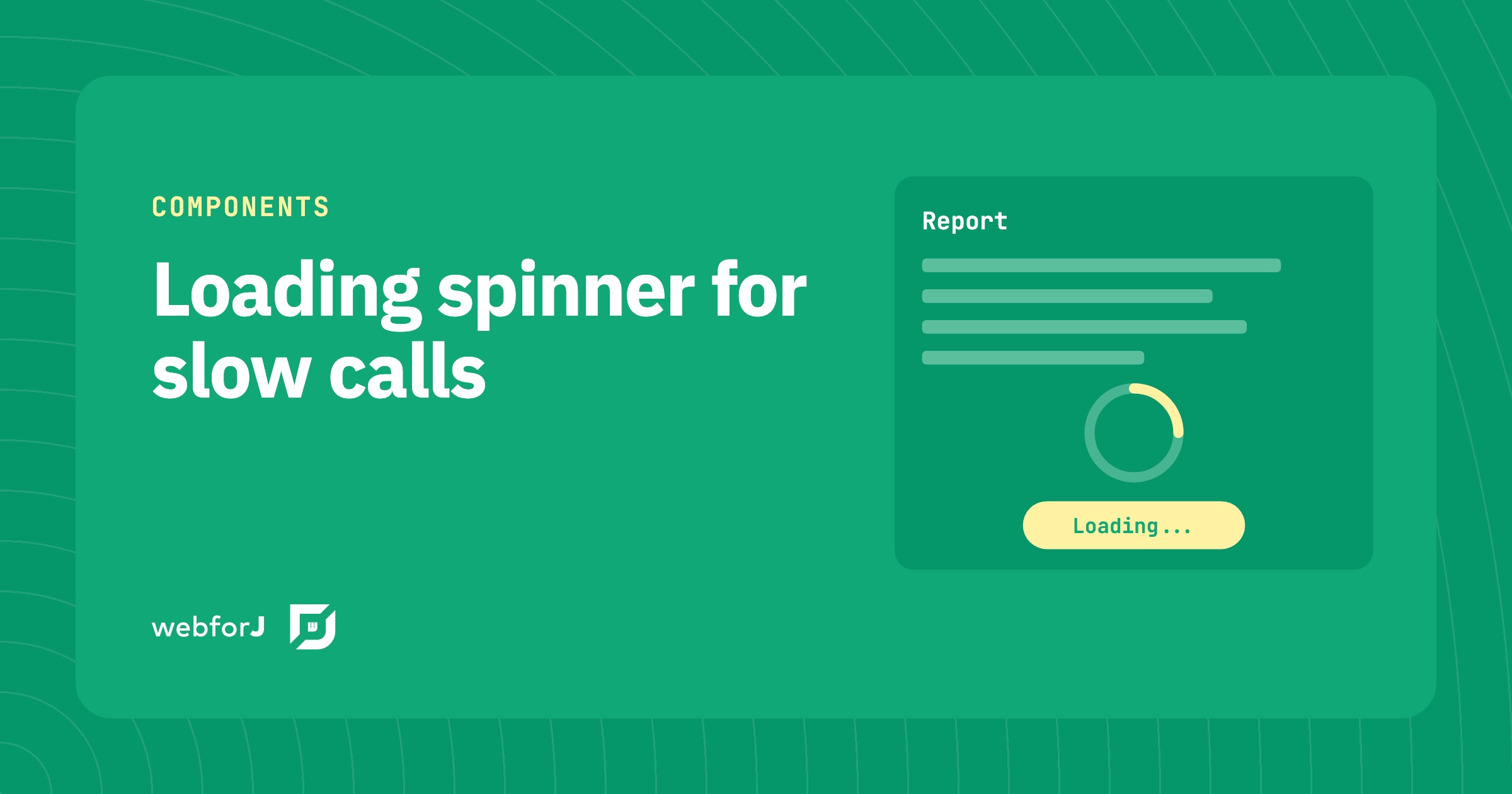
A report that takes a few seconds to load feels broken when the screen just sits there. Users click again, or leave.
A loading spinner shows the user that the app is still working on a slow request. In webforJ, you add one with the Loading component for a single area, the BusyIndicator for the whole interface, or a Spinner placed inline. This tutorial covers each one, plus how to run the slow call off the UI thread and update the page when the result arrives.
Choose the indicator for the scope
Pick the indicator by asking how much of the page the slow work affects. webforJ ships three, and each one covers a different area.
Loading overlays one parent container, such as a card, a table, or a form section. Only that container is blocked while the overlay is open. BusyIndicator covers the whole interface, which suits work that touches several views at once. Spinner is the animation by itself, with no overlay, so it sits next to a button or a status line.
Add a loading spinner to a card
The Loading component covers its parent, so the parent should be the area you want covered. The Loading docs add it to a Div that gets position: relative:
Div parentDiv = new Div();
parentDiv.setStyle("position", "relative");
Loading loading = new Loading();
parentDiv.add(loading);
loading.open();  // Loading will only block interaction within the parentDiv
Loading stays hidden until you call open(), and close() hides it again. Only the parent Div is blocked while it's open, so the rest of the page stays usable.
Run the slow backend call
The slow call shouldn't run on the UI thread. The asynchronous updates page shows the pattern: hand the work to an executor, then bring the result back with Environment.runLater().
@Route
public class DataView extends Composite<Div> {
  private final ExecutorService executor = Executors.newCachedThreadPool();

  public DataView() {
    // The constructor runs on the Environment thread
    Environment env = Environment.getCurrent();

    executor.submit(() -> {
      String data = fetchRemoteData();

      Environment.runLater(env, () -> {
        dataLabel.setText(data);
        loadingSpinner.setVisible(false);
      });
    });
  }
}
The constructor reads Environment.getCurrent() while it's still on the Environment thread, and passes it to runLater(). The worker thread belongs to no session, so that captured Environment is what routes the update to this user's page. fetchRemoteData() stands in for your slow service.
Every component change happens inside runLater, including hiding the spinner. webforJ requires UI operations to run on the Environment thread, so close your Loading there too, in the same block that sets the result.
Busy indicator for the whole page
Some actions change more than one card. A save that updates a grid and a detail panel is one example. For that case, use the app-wide BusyIndicator:
BusyIndicator busyIndicator = App.getBusyIndicator();
busyIndicator.setBackdropVisible(false);  // Disables the backdrop
busyIndicator.open();
Even with the backdrop turned off, the BusyIndicator keeps blocking interaction until it closes. The backdrop only controls the visual layer. The BusyIndicator page lists the rest of its options.
Add an inline spinner
A Spinner is the animation by itself, with no overlay, so it fits next to a button or a status line. Pick a size with setExpanse(). The default is SpinnerExpanse.NONE, so set a size when the spinner sits next to text:
spinner.setExpanse(SpinnerExpanse.LARGE);
setPaused() freezes and resumes the animation, which suits a step that waits for the user to confirm something:
spinner.setPaused(true);  // Pause the spinner
spinner.setPaused(false); // Resume the spinner
setSpeed() takes milliseconds per rotation, and the default is 1000. A lower number spins faster. setClockwise(false) reverses the direction. The Spinner page has a live demo for each option.
Common mistakes
- The overlay covers more than you expected. A
Loadingcovers its parent, so add it to the container you want blocked and nothing else. - Turning off the backdrop doesn't let clicks through. The backdrop only controls the visual layer. Both
LoadingandBusyIndicatorkeep blocking interaction until they close. - The spinner stays on after an error. Catch the exception on the worker thread and hide the spinner in the same
runLaterblock that sets the message.
Add a spinner to your slowest call
Create a project with startforJ, add the DataView pattern to the view with your slowest call, and replace fetchRemoteData() with your service. The getting started guide covers the other ways to create a project.
Frequently asked questions
Should I use Loading or BusyIndicator?
Use Loading when one area waits for data, and use BusyIndicator when the whole interface should wait. A card that fetches its own rows is a Loading case. A save that refreshes several views is a BusyIndicator case. Both open with open() and close with close().
Why must UI updates go through Environment.runLater?
webforJ requires UI operations to run on the Environment thread, and the worker thread is a different thread. Environment.runLater() queues the update onto the Environment thread and returns a PendingResult. Pass it the Environment read on the UI thread, as DataView does.
How do I show progress while loading data in Java?
Show the spinner before the call starts, and hide it in the same runLater block that sets the result. That keeps the spinner in step with the call from start to finish. If you need a percentage instead of an open-ended spinner, the ProgressBar component fits that case.
Can I pause or slow down the spinner?
Yes. setPaused(true) freezes the animation, and setSpeed(500) makes one rotation take half a second. The default is 1000 milliseconds. Use a slower speed for long jobs and a faster one for short tasks.
¿Creando algo con webforJ?
Habla con el equipo sobre tu proyecto, una migración o si webforJ es lo que necesitas.
Seguir leyendo
 Selenium vs Playwright for Java: testing a webforJ UISelenium vs Playwright for Java UIs: both drive a webforJ app from plain JUnit. Here are the myths, the facts and which one to pick for your suite.
 Checkbox group in Java: choose the right input in webforJBuild a checkbox group, a radio button group and a toggle switch in Java with webforJ. Pick the right input and read each value in a listener.
 Lazy load tree in Java: children on expand with webforJLazy load a tree in Java with webforJ. Give each folder a placeholder child, then fetch the real children inside the onExpand handler when it opens.
