Extract data from an image in Java with AI and webforJ


To extract data from an image in Java, upload the file with the webforJ Upload component, send the bytes to a vision-capable model through Spring AI, and ask for a typed result. Spring AI maps the answer to a Java record, so your view gets the vendor, invoice number, date, and total as fields. You do not need a separate OCR library or a text parsing step.
The complete project, Invoice Reader, is published on GitHub, so you can view the code and run it with your own Gemini API key. The project is kept up to date with the latest webforJ release, so its framework version can be newer than the one this post was written for.
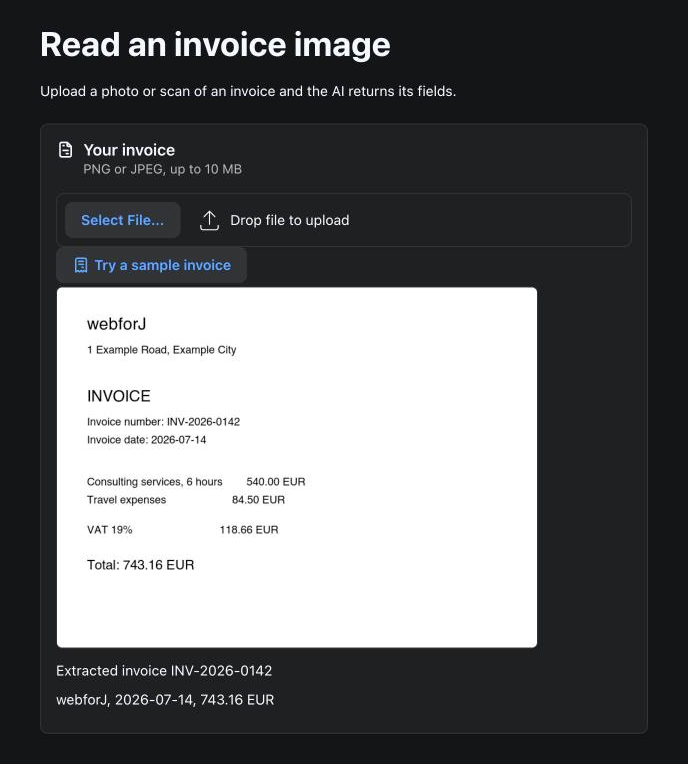
Upload images in a Java web app
Start with the file picker. The Upload component is an inline file picker that ships with webforJ 26.01. It handles picking, dropping, and sending the file to the server. You do not need a modal dialog for this.
- Limit the picker to image types with
addFilter. - Allow one file with
SelectionMode.SINGLE. - Cap the file size with
setMaxFileSize. - Start the transfer when the file is picked with
AutoUpload.ALWAYS, then hide the Upload button.
private final Upload upload = new Upload();

public InvoiceUploadView(ChatClient chat) {
  this.chat = chat;

  upload.setSelectionMode(Upload.SelectionMode.SINGLE);
  upload.addFilter("Invoice images", "*.png;*.jpg;*.jpeg");
  upload.setMaxFileSize(10d * 1024d * 1024d);
  upload.setAutoUpload(Upload.AutoUpload.ALWAYS);
  upload.setVisible(false, Upload.Part.UPLOAD_BUTTON);
  upload.onUpload(e -> extract(e.getFile()));

  self.add(upload, status, result);
}
onUpload fires once the file has reached the server. e.getFile() returns that file, because this picker holds one file at a time.
The size cap runs in the browser. A file over the limit fires UploadRejectEvent before any bytes move, so the model never sees it. Filters only shape what the picker offers. Check the extension on the server too, with getClientExtension(), before you send anything to a model. The extract method in the next section maps png to the PNG type and falls back to JPEG for everything else, so a file with another extension still reaches the model. Reject it there if your app should accept only these two types. The filename comes from the client, so read it through getSanitizedClientName() whenever it becomes part of a path or a message.
Send the image to the model
Spring AI's ChatClient accepts media inside a user message. You pass the MIME type and a resource for the image. You then call entity with a class, and the client asks the model for output that matches that class and converts the answer. Spring AI auto-configures a ChatClient.Builder, so declare a ChatClient bean that returns builder.build(), and Spring injects it into the view.
The uploaded file sits in webforJ's upload cache. Call move() to take it out of the cache before you use it. move() needs the session's environment, so call it in the upload listener, before the worker thread starts. The model call takes time, so run it on a separate thread. When the answer arrives, hand the UI update back with Environment.runLater.
private void extract(UploadedFile uploaded) {
  status.setText("Reading " + uploaded.getSanitizedClientName() + "...");

  File file;
  try {
    file = uploaded.move();
  } catch (IOException ex) {
    status.setText("Could not read " + uploaded.getSanitizedClientName());
    return;
  }
  MimeType type = uploaded.getClientExtension().equalsIgnoreCase("png")
      ? MimeTypeUtils.IMAGE_PNG
      : MimeTypeUtils.IMAGE_JPEG;

  new Thread(() -> {
    try {
      InvoiceData data = chat.prompt()
          .user(u -> u.text(PROMPT).media(type, new FileSystemResource(file)))
          .call()
          .entity(InvoiceData.class);
      if (data == null) {
        throw new IllegalStateException("the model returned no fields");
      }

      Environment.runLater(() -> show(data));
    } catch (Exception ex) {
      Environment.runLater(() -> {
        status.setText("Extraction failed: " + ex.getMessage());
      });
    } finally {
      file.delete();
    }
  }).start();
}
The status label changes and the file leaves the cache before the thread starts, so the user sees feedback at once. move() without an argument places the file in the app's working directory, so the finally block deletes it once the model has read it. entity can return null, for example when the model sends back no content, so the method turns that case into a failure. The catch block reports a failure through the same runLater path, which keeps every component update on the UI thread.
The prompt is the contract with the model. It names the fields you want and says what to do with values the model cannot read. In this sketch it is:
private static final String PROMPT =
    "Extract the vendor, invoice number, invoice date, currency, and total from this invoice. "
        + "Use null for any field you cannot read.";
Keep the prompt short and literal. Each field name should match a record component, so the answer maps without guesswork.
Map the answer to a record
Define the shape you want as a record. Each component becomes one field the model fills in. Use BigDecimal for the total, so the amount is never stored as a binary floating point value.
record InvoiceData(
    String vendor,
    String invoiceNumber,
    String invoiceDate,
    String currency,
    BigDecimal total) {}

private void show(InvoiceData data) {
  status.setText("Extracted invoice " + data.invoiceNumber());
  result.setText(data.vendor() + ", " + data.invoiceDate() + ", "
      + data.total() + " " + data.currency());
}
Treat every field as optional. The prompt asks for null when a value is unreadable, so any component of the record can be null. This sketch prints those values as the text null. In your UI, show an empty field with a short warning. Dates arrive as text here, so parse them with LocalDate only after you check that they match the format you expect.
Keep the UI thread free
A model call takes far longer than a button click. If you make the call inside the onUpload listener, the session waits until the answer returns. The worker thread in extract avoids that wait. Every change to a component goes through Environment.runLater, so the page updates on the thread that owns it.
The code in the earlier sections attaches no chat memory. Each call sends one image and one prompt, so no conversation builds up between uploads.
Checklist
- Filter the picker to image types.
- Cap the file size with
setMaxFileSize. - Check the extension on the server with
getClientExtension(). - Move the upload out of the cache in the upload listener, before the worker thread starts.
- Delete the file once the model has read it.
- Run the model call on a separate thread.
- Update components only inside
Environment.runLater. - Treat every extracted field as optional.
- Compare the extracted total with the invoice before you save it.
Next step
Create a project with startforJ or follow the getting started guide. Add the Upload component to a view, then add the Spring AI starter for the model you use. Run the view with an invoice image before you change the prompt. If the upload should open on demand, use the file upload dialog instead.
Frequently asked questions
Can an LLM read invoices in Java?
Yes, when the model accepts image input. The code in the previous sections sends the invoice as media in the user message, and the answer comes back as a Java record. Name the fields you need in the prompt, so the model returns the same shape every time.
Do I need OCR software first?
Not with this approach. The model reads the image directly, so there is no separate OCR step to set up. Still compare the extracted totals with the invoice before you save anything. The Spring AI reference documentation covers the chat client and model setup.
正在用 webforJ 构建项目?
与团队聊聊您的项目、迁移事宜,或 webforJ 是否适合您。
继续阅读
 AI form filling in Java: Spring AI structured outputBuild an AI form filler in Java with Spring AI and webforJ. Turn pasted text or an uploaded file into a typed bean, load it with BindingContext, and validate before saving.
 Summarize PDFs with AI in Java using Spring AI and webforJUpload a PDF in a webforJ view, extract its text with Spring AI and Apache Tika, and show an AI summary in Java. Three classes, no REST layer, no JavaScript.
 Build an AI agent in Java that uses your web app like a userBuild an AI agent in Java with Spring AI and webforJ that reads the screen, clicks, types and fills forms in your running app while the user watches each step.
