Spring Boot Live Reload UI: See Java Changes in Your Browser

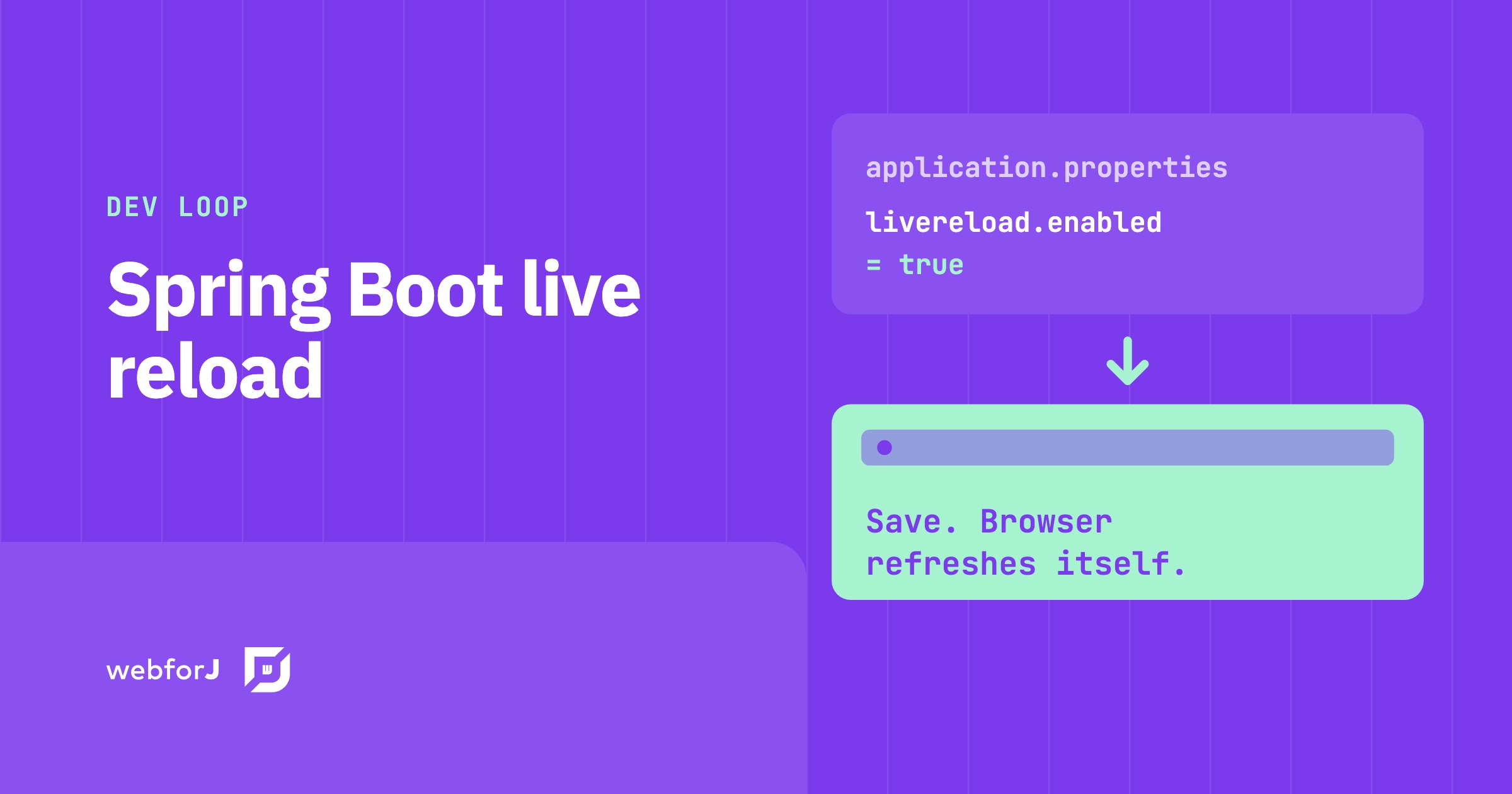
You change a label in your Java view, switch to the browser, and then wait. Stop the app, start it again, reload the page, click back to the screen you were on. Repeat that all day and a lot of development time quietly goes into waiting.
A Spring Boot live reload UI setup removes those steps. You save, the app picks up the change, and the browser refreshes on its own. In this post you'll turn it on for a webforJ app, see how each kind of change reaches the page, and look at the tools around it for CSS and for editing properties while the app runs.
What you'll set up
By the end you'll have three things working together in one Spring Boot project:
- Live reload, so a saved Java change shows up in the browser without you touching it.
- The frontend watch, so stylesheet changes appear in place.
- craftforJ, so you can edit component properties in the running app.
Each part builds on the previous one, and each ends with a short recap.
How the reload works
Before any configuration, it helps to know what happens when you save. webforJ treats each kind of change differently, because a stylesheet and a Java class need different handling.
| Change | Result |
|---|---|
| Java class, no hotswap tool | The app restarts. The browser reloads when the app is ready. |
| Stylesheet or image | The page applies it in place, without a reload. |
Source under src/main/frontend | The watch rebuilds it and updates the browser. |
If you add a hotswap tool, a Java class change updates in the running app instead of restarting it, and the app state stays. The full table is on the Redeployment and Live Reload page.
Recap: a Java change restarts the app and the browser follows. A stylesheet change never needs a reload.
Spring Boot DevTools browser reload
In a Spring Boot app, the webforJ build plugin delivers the development tools to development runs. You declare no dependency for them, and they never end up in the packaged app. A project created from an archetype already has the starter and the plugin:
<dependency>
  <groupId>com.webforj</groupId>
  <artifactId>webforj-spring-boot-starter</artifactId>
</dependency>
<plugin>
  <groupId>com.webforj</groupId>
  <artifactId>webforj-maven-plugin</artifactId>
  <version>${webforj.version}</version>
  <extensions>true</extensions>
</plugin>
Now turn live reload on in application.properties:
webforj.devtools.livereload.enabled=true
server.shutdown=immediate
Start the app as usual with mvn, or ./gradlew bootRun with Gradle. Java changes apply after a compile, stylesheet and image changes apply in place, and sources under src/main/frontend rebuild through the frontend watch.
Spring Boot DevTools is optional, because live reload works without it. If you want its restart model, add its dependency:
<dependency>
  <groupId>org.springframework.boot</groupId>
  <artifactId>spring-boot-devtools</artifactId>
  <optional>true</optional>
</dependency>
With Spring DevTools present, a compiled change restarts the Spring context and the browser refreshes when the restart completes. With a hotswap tool configured as well, the tool applies the class updates and the restart stays off.
Recap: one property turns live reload on, DevTools is an optional add-on, and the build plugin keeps all of it out of your packaged app.
Hot reload for a Java web UI
The other half of the loop is the browser. With the app running, you can watch what happens when the server restarts. Applied styles stay on the page, and an indicator shows while the server is down. The page reloads when the app is ready, not before, so you never land on an error page halfway through a restart.
Several keys tune the connection between the browser and the app:
| Property | Default | Description |
|---|---|---|
webforj.devtools.livereload.enabled | false | Turns live reload on for development runs. |
webforj.devtools.livereload.websocket-port | 35730 | Port for the browser connection. |
webforj.devtools.livereload.websocket-path | /webforj-devtools-ws | Path for the browser connection. |
webforj.devtools.livereload.static-resources-enabled | true | Applies stylesheet and image changes in place instead of reloading the page. |
webforj.devtools.livereload.heartbeat-interval | 30000 | Interval in milliseconds for the connection checks that detect a restarting server. |
The defaults work for most projects, so enabled is usually the only key you set. None of these keys has any effect in a packaged app.
Recap: the browser connects to the running app, waits out a restart, and reloads once the app is ready.
Frontend watch for CSS changes
CSS is where you'll feel live reload the most. A stylesheet edit applies in place, so form data and scroll position stay exactly where they were. The same goes for an image. Sources under src/main/frontend are rebuilt by the frontend watch, which needs webforj.devtools.livereload.enabled to be on.
Run the watch goal before the goal that starts the app. An archetype project sets this as its default goal, so mvn with no arguments runs both:
mvn compile webforj:watch spring-boot:run
What the browser does depends on the output the rebuild produces:
| Output | Browser action |
|---|---|
Stylesheet, from a .css, .scss, .sass, or .less source | Applied in place. No reload, form data and scroll position stay. |
| Image | Swapped in place. No reload. |
Any other output, such as compiled .ts, .tsx, or .js | The view reloads. |
When one rebuild produces several files, the browser applies them in place only if every file qualifies. Otherwise it reloads once, so a change never applies partially. Read more on the frontend bundler page.
Recap: styles and images change in place, scripts reload the view, and mvn compile webforj:watch spring-boot:run starts it all.
See UI changes without a restart
A restart is the slowest part of the loop, and a hotswap tool takes it away. It applies compiled class changes to the running app, and the app keeps its state between updates. The tool is named in the build plugin configuration, and the run command stays the same.
Two tools are supported. HotswapAgent is open source, and the build plugin downloads it on the first run. JRebel is a commercial product that needs your own installation and license. Configure exactly one, because a build naming both fails with an error. The Hotswap page has the configuration for each.
Recap: hotswap turns a restart into an in-place update, and live reload still refreshes the browser around it.
Edit properties live with craftforJ
Live reload covers what you save. For a quick look at what a property would do, there is craftforJ, which runs inside your app in development mode. You select a component, change its properties, and the running app updates immediately.
To turn it on, add the webforj-devtools dependency and two properties:
<dependency>
  <groupId>com.webforj</groupId>
  <artifactId>webforj-devtools</artifactId>
  <version>${webforj.version}</version>
</dependency>
webforj.debug = true
webforj.devtools.craftforj.enabled = true
craftforJ only works when both properties are on, so an app that reaches production with debug mode left on doesn't expose your source tree. Projects created with startforJ or from an archetype have it enabled already. Once it's on, a trigger button appears over your app. Click it, or press Alt + Shift + D.
A property edit changes the app in front of you and nothing else. When you want to keep one, press Cmd/Ctrl + S to review the change as a diff and write it into the Java file it came from. The Inspecting Components and Applying Changes pages cover both steps.
craftforJ is available from webforJ 26.02.
Recap: live reload shows you the code you saved, and craftforJ lets you try a property before you save anything.
Check the packaged app
mvn package and ./gradlew bootJar produce an app without development tools, with no exclusion, profile, or property required. The webforj.devtools.livereload.enabled property has no effect in a packaged app, so you can leave it in your configuration.
Frequently asked questions
Do I need Spring Boot DevTools for live reload?
No. Live reload works without it. Add the spring-boot-devtools dependency only if you want its restart model.
Why does the page reload after a Java change?
Without a hotswap tool, a Java change restarts the app, and the browser reloads once the app is ready. With a hotswap tool, the class updates in the running app and the app state stays.
Do CSS changes reload the page?
No. Stylesheet and image changes apply in place, so form data and scroll position stay. Other frontend output, such as compiled scripts, reloads the view.
Does this ship in my production build?
No. The development tools are never part of the packaged app, and the live reload property has no effect there.
Turn on live reload in one project
Open the project you work in most, add webforj.devtools.livereload.enabled=true to application.properties, and run mvn. Change a label, save, and watch the browser catch up. The Redeployment and Live Reload docs cover the rest, and the properties reference lists every key.
正在用 webforJ 构建项目?
与团队聊聊您的项目、迁移事宜,或 webforJ 是否适合您。
继续阅读
 Building a Todo App with MVC Pattern in webforJBuilding a function todo app with the model-view-controller pattern in webforJ
 Java UI testing without a browser: the webforJ TestBed guideRun Java UI testing without a browser in webforJ. The TestBed runs views in plain JUnit, with no server, and covers forms, dialogs, routes, and Spring.
 The best Java UI framework for enterprise business apps in 2026How to pick the best Java UI framework for enterprise and internal business apps in 2026: Thymeleaf, Jakarta Faces, a JavaScript SPA, or webforJ, with working code for the Java-only route.
