Swing Look and Feel
When WebswingConnector embeds a Swing app in a webforJ app, users see Swing screens next to webforJ screens. With the default Swing look and feel, the two sides look like different apps. The DWC Look and Feel for Swing gives the Swing app the fonts, colors, buttons, and focus outlines of the DWC components that webforJ uses. It comes with a light and a dark palette.
It's a standard Swing look and feel in one JAR. You add it to the Swing app's classpath and select it at startup. The rest of the Swing code doesn't change.
Swing and DWC draw their controls differently. Both sides can use the same light or dark palette, and you can still see small differences when moving between a Swing screen and a webforJ screen.
Try the demo
Order Desk is a Swing app with the theme installed. Download the Order Desk demo, then run it with Java 21 or newer:
java -jar dwc-swing-laf-demo.jar
Choose View → DWC light or View → DWC dark, then View → Primary color, and compare the selected order, the active tab, and the Save order button.
Every control in Order Desk is a standard Swing component. Switch the palette and the primary color below the screenshot, and select it to enlarge.
Install the theme
Download the theme JAR and add it to the classpath of the Swing app. It needs Java 21 or newer and includes both palettes and the Inter font.
On the Swing event dispatch thread, select the look and feel before the app creates its first window:
try {
  UIManager.setLookAndFeel(new DwcLookAndFeel());
} catch (UnsupportedLookAndFeelException e) {
  throw new IllegalStateException(e);
}
For the dark palette, use DwcDarkLookAndFeel instead. Both classes are in the com.basis.dwc.swing.laf package. If the app selects its look and feel by class name, use com.basis.dwc.swing.laf.DwcLookAndFeel or com.basis.dwc.swing.laf.DwcDarkLookAndFeel.
If the app uses Java modules, put the JAR on the module path and require com.basis.dwc.swing.laf.
Match your webforJ theme
The theme reads the same token names as webforJ themes. Set a token in the Swing app to the value your webforJ app uses.
To use the primary color of your webforJ app, set the primary seed after installing the look and feel:
DwcLookAndFeel.setToken("--dwc-color-primary-seed", new Color(117, 67, 188));
Primary buttons, selections, and focus outlines take that color. Other semantic colors, such as danger, keep their own palette. To return to the palette's primary color, pass null as the value.
The theme uses Inter by default. webforJ uses the platform font through --dwc-font-family. To use the same font in the Swing app, set the token to system-ui:
DwcLookAndFeel.setToken("--dwc-font-family", "system-ui");
A different font can change the width of labels and the height of fields, so pack windows after building their contents.
Style one control
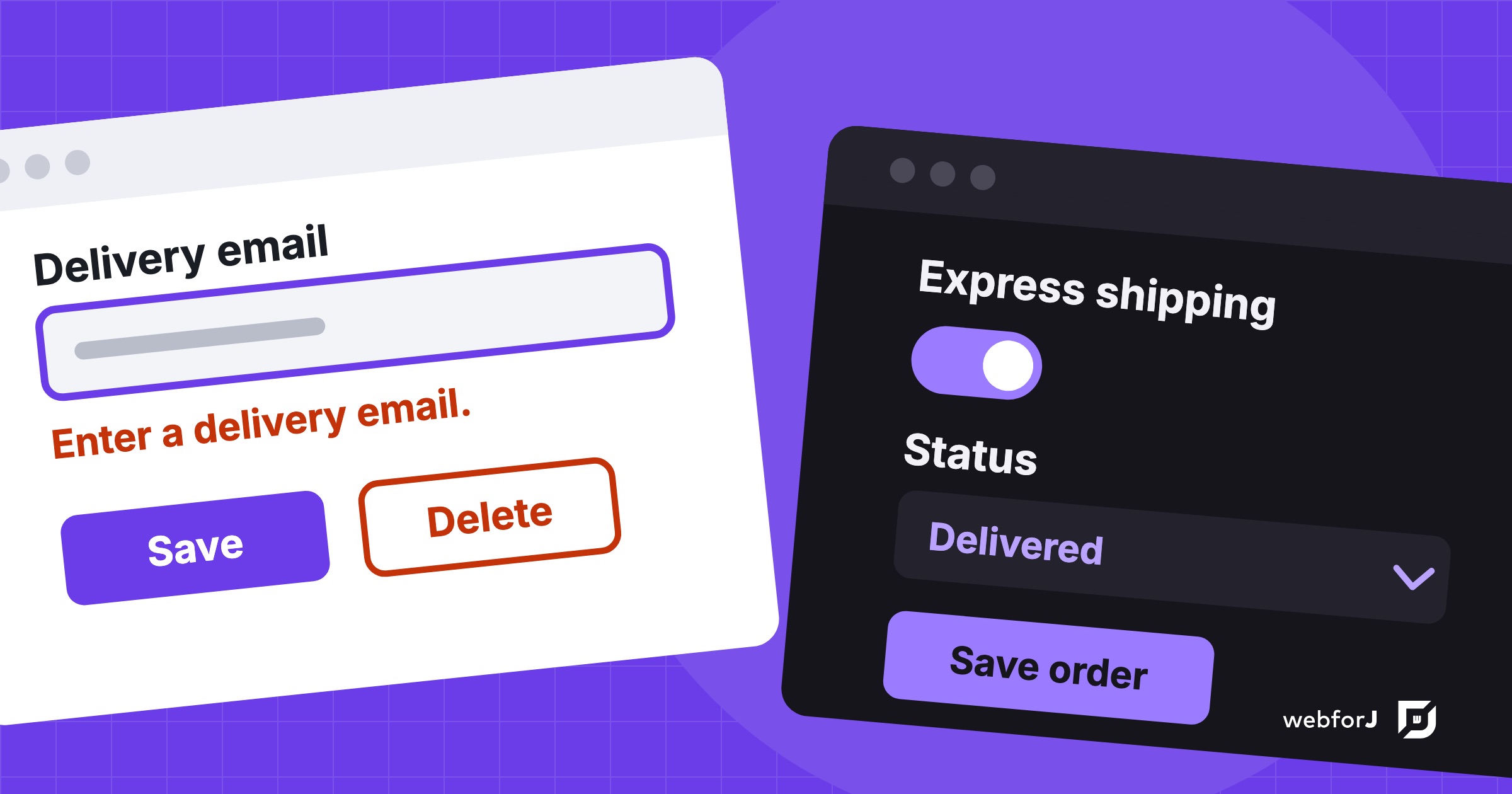
A client property changes a single control. This form labels a field, marks it required, and makes the Save button primary:
email.putClientProperty(DwcLookAndFeel.LABEL, "Delivery email");
email.putClientProperty(DwcLookAndFeel.REQUIRED, true);
save.putClientProperty(DwcLookAndFeel.THEME, ButtonTheme.PRIMARY);
To show a validation message under a field, set the invalid state and the helper text:
boolean missing = email.getText().isBlank();
email.putClientProperty(DwcLookAndFeel.INVALID, missing);
email.putClientProperty(DwcLookAndFeel.HELPER_TEXT,
    missing ? "Enter a delivery email." : "");
The client properties reference lists the keys for every control, including tables, trees, tabs, sliders, and dialogs.
The full theme guide covers dialogs, keyboard focus, and motion.
Moving a desktop Java app to the web?
Send us a screenshot of one screen and we'll reply with how it moves to webforJ.