Licence BLS locale
Un service de licence BASIS local (BLS) permet à une application webforJ de demander une licence à un service s'exécutant sur votre machine de développement ou votre réseau interne. Cette configuration est utile lorsque vous avez un numéro de série et un numéro d'autorisation et que vous souhaitez que le projet utilise les fichiers de licence locaux générés plutôt que la configuration de licence par défaut.
Un projet webforJ créé avec startforJ inclut deux fichiers de licence sous src/main/resources :
src/main/resources/blsclient.conf
src/main/resources/certificate.bls
Voici comment remplacer les fichiers de licence par défaut par ceux générés avec une installation locale de BLS :
Prérequis
Avant de commencer, assurez-vous d'avoir :
- Java 21 ou Java 25 disponible pour exécuter le programme d'installation de BLS 26.
- Un numéro de série et un numéro d'autorisation.
- Un projet webforJ avec un répertoire
src/main/resources. - Un accès à la machine où BLS sera exécuté.
1. Téléchargez le programme d'installation de BLS
Pour obtenir le programme d'installation de BLS, allez sur la page BASIS Product Suite Downloads.
Une fois que vous avez sélectionné une langue souhaitée pour le formulaire, allez à la section Select Product. Dans le menu déroulant Product, sélectionnez BLS, et dans le menu déroulant Revision, sélectionnez la dernière version. Les versions Java requises pour exécuter le BLS se trouvent sous le menu déroulant Revision.
Ensuite, remplissez le formulaire dans Contact Information, et sélectionnez les cases à cocher dans Download Terms.
Une fois que vous avez rempli le formulaire, sélectionnez le bouton Download pour télécharger le programme d'installation JAR de BLS.
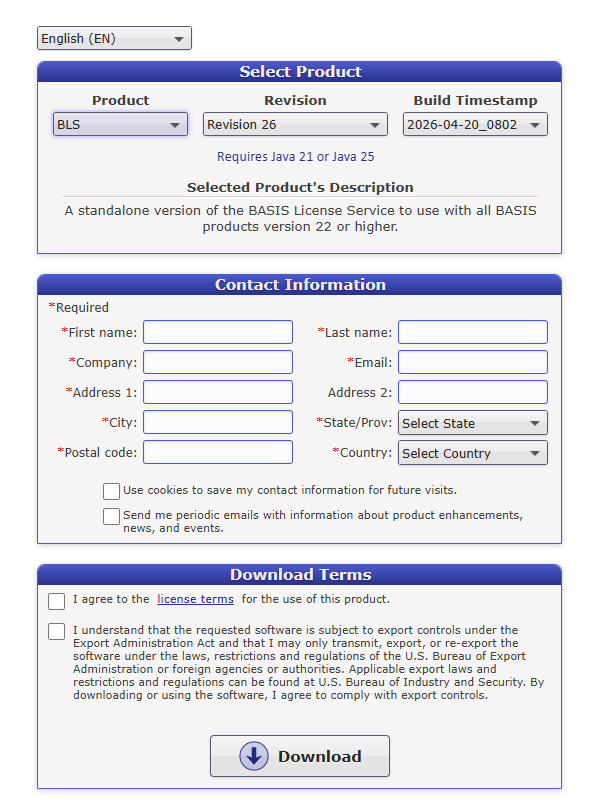
Formulaire de téléchargement avec BLS sélectionné comme produit.
2. Installez et configurez le BLS
Le JAR exécutable téléchargé a la convention de nommage suivante : BLS<revision><date>_<time>.jar. Localisez le JAR et double-cliquez dessus pour lancer l'installateur, ou exécutez-le depuis une console de commande :
java -jar <downloaded-bls-installer>.jar
Suivez les instructions de l'installateur et remplissez les détails requis.
Par défaut, le BLS s'installe dans des répertoires spécifiques selon le système d'exploitation, mais cela peut être changé dans la fenêtre Directory Selection. À partir de maintenant, <blshome> fait référence à l'emplacement d'installation du BLS.
- Windows :
C:\bls - macOS :
/Applications/bls - Autres systèmes d'exploitation :
/usr/local/bls
Une fois que vous avez installé le BLS, il ouvrira l'Assistant d'enregistrement de licence.
Enregistrement de la licence
-
Dans l'Assistant d'enregistrement de licence, choisissez l'option
Retrieve a license: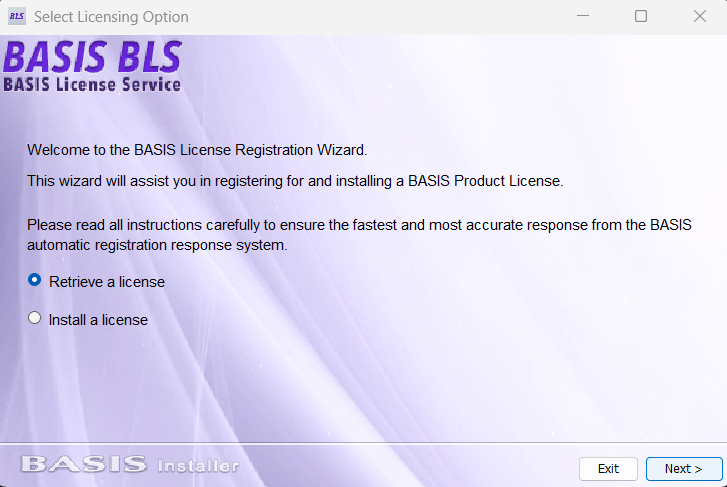
Assistant d'enregistrement de licence avec
Retrieve a licensesélectionné. -
Dans les fenêtres suivantes, entrez vos informations de contact, votre numéro de série et votre numéro d'autorisation.
-
Lorsque vous arrivez à la fenêtre License Registration and Delivery Methods, choisissez
Register and install a license automatically.
Après avoir enregistré votre licence, terminez la configuration du BLS local selon vos besoins. Si, à un moment ultérieur, vous devez modifier vos paramètres BLS ou récupérer une autre licence, utilisez l'Admin BLS à <blshome>/bin/BLSAdmin.
3. Copiez les fichiers de licence générés
Maintenant, allez dans le répertoire <blshome>/cfg et localisez les fichiers de licence générés blsclient.conf et certificate.bls :
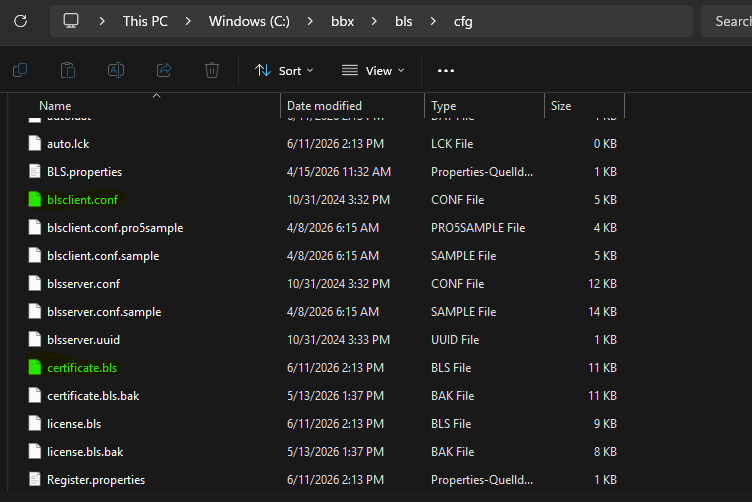
Dossier cfg de l'installation BLS contenant la configuration client générée et le certificat.
Copiez blsclient.conf et certificate.bls dans votre projet webforJ, et remplacez tout fichier existant portant les mêmes noms dans le répertoire des ressources. Maintenant, lorsque votre BLS local fonctionne, votre application webforJ demande la licence à ce service.
src
├───main
│   ├───java/
│   └───resources
│       ├───icons/
│       ├───static/
│       ├───application.properties
│       ├───banner.txt
│       ├───blsclient.conf
│       └───certificate.bls
Si vos fichiers de licence se trouvent en dehors du répertoire de configuration par défaut de webforJ, vous pouvez configurer le répertoire de licence avec webforj.license.cfg.