Inspecting Components
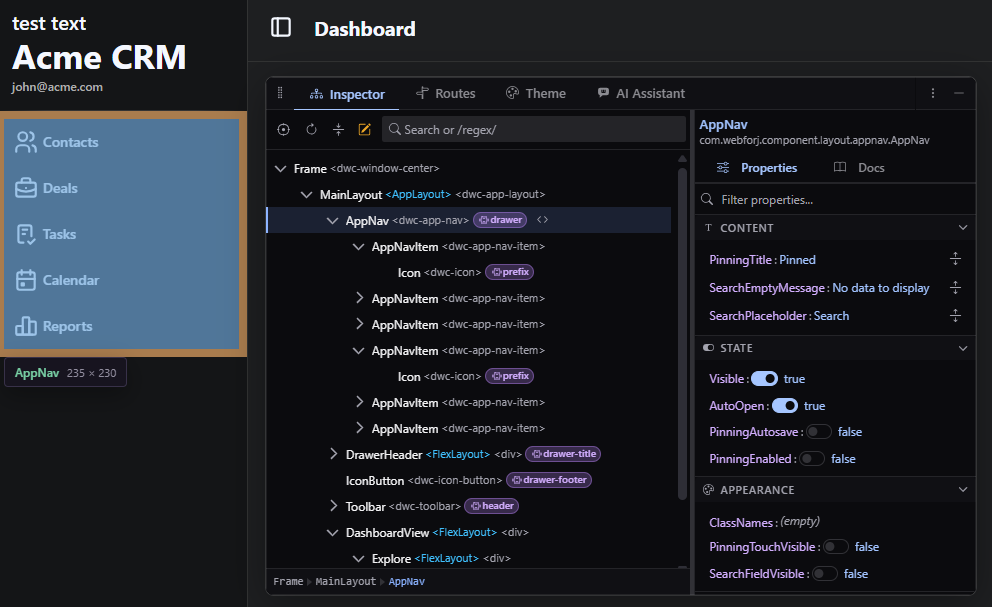
The Inspector shows the component tree that your Java code built. A Composite appears as the class you wrote, holding the children you gave it in the order webforJ holds them, so the structure in craftforJ matches the structure in your source.
Selecting a component
To select a component from the page, press Alt + Shift + C and click it. craftforJ selects the matching node in the tree. Hovering a node in the tree does the reverse and highlights that component in the page, so you can move between the screen and the tree in either direction.
To search the tree, press Cmd/Ctrl + F. Wrapping a term in slashes treats it as a regular expression. Right-clicking a node opens the actions available for it. You can open its source or hand it to the assistant.
Reading and changing properties
Selecting a component fills the sidebar with its properties, grouped by what they affect. Which properties a component offers depends on the component, and some of them are read-only. Properties that don't read well as plain text get an editor suited to their value instead. Changing a value takes effect in the running app immediately.
A property edit changes the app in front of you and nothing else. Getting it into your source is a separate step that you carry out deliberately, described in Writing changes to source.
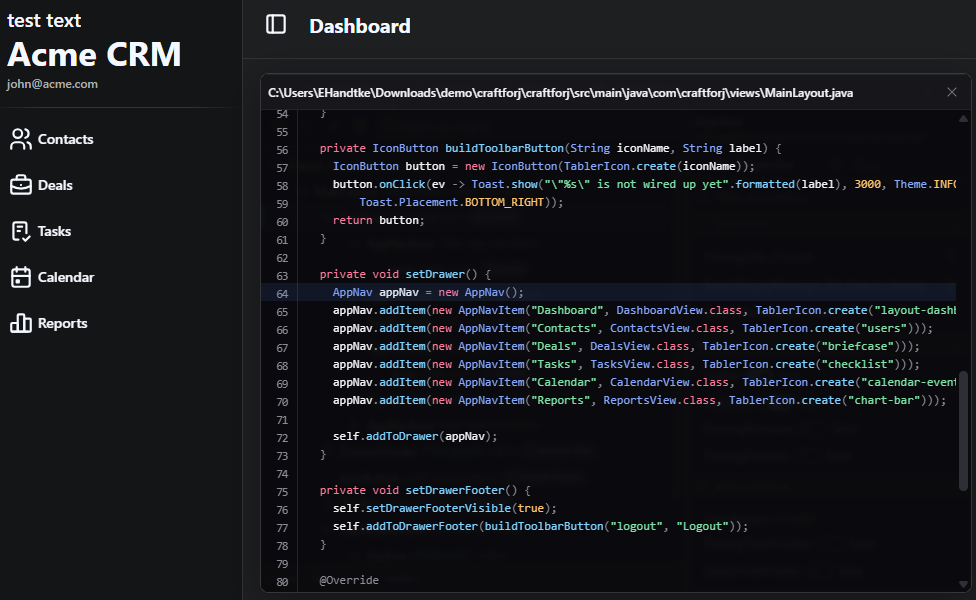
Viewing the source of a component
You can trace any component back to the Java that built it. By default, the source opens in craftforJ as read-only, positioned at the line that created the component. You can configure craftforJ to open it in your editor instead, at the same line. When a component can't be traced to a line, craftforJ reports that rather than opening an empty viewer.